Cycle Time Analysis
Cycle Time Analysis compares the cycle times you actually achieve with the targets set for each SKU. Use it to find differences between stations, and to set targets from real production data.
Info
Cycle Time Analysis is turned on for each account by Output Industries. If Production > Cycle Time Analysis is not in your menu, contact support.
How cycle times are recorded
When a schedule is running, Busroot records a cycle time each time a SKU is produced. A cycle time is only recorded between two producing minutes in a row of the same SKU, in the same schedule and shift, with no downtime between them. Cycles next to downtime, schedule boundaries, shift changes or SKU changeovers are left out, because a complete part-to-part time cannot be measured.
SKUs with no measurable cycles in the selected range are not listed.
Using Cycle Time Analysis
Open Production > Cycle Time Analysis.
- Choose the Station Groups and Stations.
- Choose the Range Type (day, week, month, quarter, relative or custom) and the Range.
- Select Submit.
- Above the table, choose how to show the values: Cycle Time, Units per Minute or Units per Hour. Busroot remembers your choice.
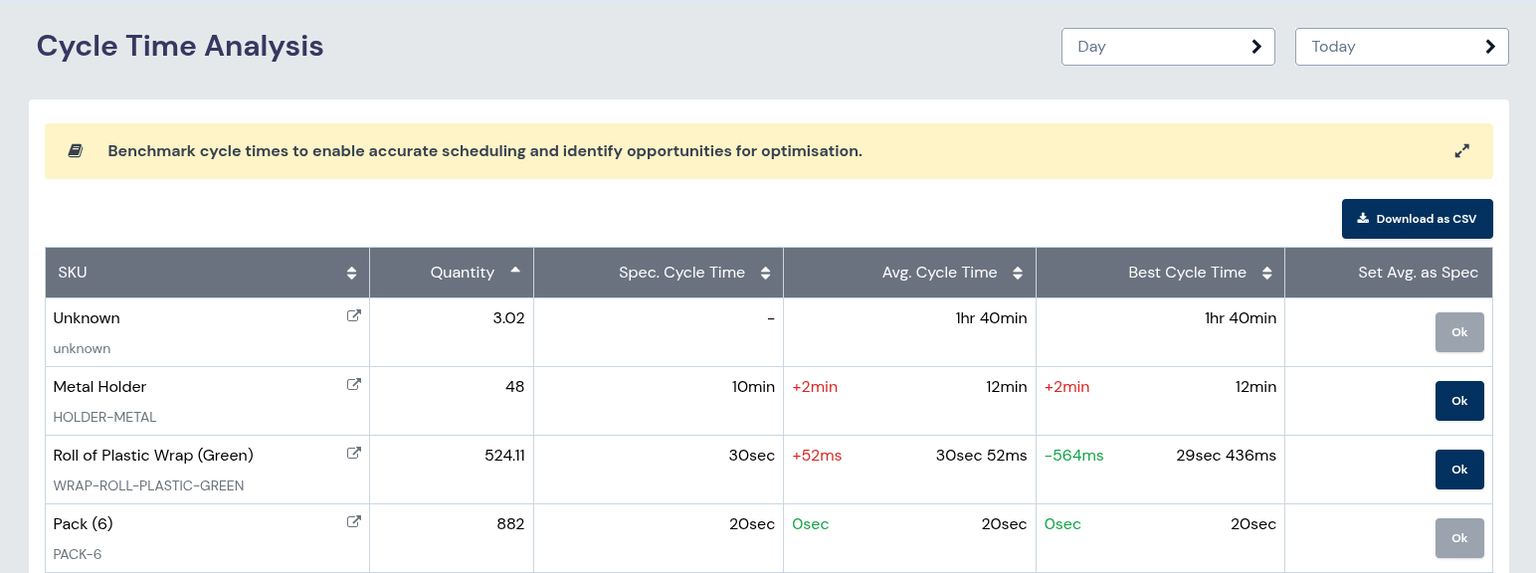
The table has one row for each SKU:
| Column | What it shows |
|---|---|
| SKU | The SKU name and code. Click it to open the breakdown by station. |
| Quantity | The number of units from complete cycles used in the calculation. This is not the total Production count for the range. |
| Spec. | The performance target set for the SKU in SKU admin. |
| Avg. | The average measured value in the range, with statistical outliers removed. |
| Best | The best value achieved in the range. |
Spec., Avg. and Best are the three values of the Cycle time metric. The column headings follow the unit you chose, for example Avg. Units/Hour.
You can filter the table and download it as CSV.
Setting the target to the average
To align a SKU's target with what the shop floor achieves:
- Open the menu on the SKU's row.
- Select Set SKU Spec. Cycle Time to Average (the wording follows the unit you chose).
- Check the From and To values, and confirm.
The new target is saved in SKU admin. This action is not available for the default SKU, or to users with the Supervisor role.
Breakdown by station
Click a SKU's name to open its detail page. It shows Quantity, Spec., Avg. and Best for each station that made the SKU. Use it to see whether some stations or teams do better than others, and which good practices to copy. You can download this table as CSV too.