Scheduling
Scheduling plans what each station should be doing: production, or planned non-production such as maintenance.
You create schedules by hand, upload them from a CSV or XLSX file, or send them from your ERP through the API, then sequence and prioritise them and send them to the Operator Interface. Busroot tracks how much capacity is scheduled ahead of time and compares what ran with the plan, and every other capability is measured against scheduled time.
How it works
Types of schedule
There are two types of schedule:
- A production schedule links a station to a SKU, usually with a work order reference and a quantity, an end time, both, or neither (a Continuous schedule).
- A non-production schedule links a station to a non-production reason, such as planned maintenance, a changeover or cleaning. It always has a planned start and a planned end.
Every schedule has a start and an end. Each can happen automatically at the planned time, or be done by an operator in the Operator Interface. Order types and start and end modes are described on Gantt & Schedules.
Adding schedules
There are three routes. You can use them together.
- By hand, on the Gantt.
- By upload of a CSV or XLSX file.
- From an ERP or other system, through the API.
The steps for each are under Set it up.
Running schedules
Operators see the station's schedules in order in the Operator Interface, and start and end them. Where it is allowed, they can also start ad hoc schedules when nothing is planned, and cut a running production schedule short (see the FAQ below).
Production is only recorded while a production schedule is running on the station. See Production Tracking.
Prioritising a schedule. When plans change at short notice, you can move a schedule to the front without changing its planned start. See Prioritising a schedule.
Planned non-production
A device can declare that a station is in planned non-production, with a reason, instead of a schedule. See Non-production signal.
Non-production overrides production. When a non-production schedule, or a non-production signal, is active on a station, that time counts as scheduled non-production, even if a production schedule is also running.
Shifts and targets
Scheduled time is only counted inside a shift. The SKU's performance target sets how long a fixed-quantity schedule is expected to take, and its target count.
Set it up
Scheduling needs your stations, SKUs and shift patterns set up first (see Getting started).
- Set up shift patterns. See Shift patterns: scheduled time is only counted inside a shift.
- Set performance targets. Set each SKU's performance target on the SKU admin page.
- Add non-production reasons. Non-production schedules need reasons of type Non-production on the Reasons admin page.
- Choose what operators may do. On the Station admin page, Allow Ad Hoc Schedules lets operators start a production or non-production schedule from the Operator Interface when nothing is planned. Allow Cutting Schedules Short lets operators end a running production schedule before its planned end (see the FAQ below).
- Add schedules. Most capabilities only record data while a production schedule is running. To start monitoring without planning individual jobs, add one Continuous production schedule for each station. It has no quantity and no end time, so it runs until you end it. To plan jobs, use one or more of these routes:
- By hand. Use Add Schedule, or drag across a station's row on the Gantt. Choose the station, the SKU, the work order reference, the planned start, how the schedule starts (at the planned time or by the operator), and the order type, with its quantity or end time. Non-production schedules have their own tab. See Gantt & Schedules.
- By upload. Upload a CSV or XLSX file of schedules on Upload Schedule. The page has a template to download and lists the columns. If your planning system exports a different layout, send an example file to support and they can set up a mapping for it. When you upload:
- a schedule for a station that is not in Busroot is not uploaded;
- a SKU that is not in Busroot is created automatically;
- rows that fail are listed with the reason, and the rest are uploaded.
- Through the API. See API and SDK, including what information an ERP integration needs.
- Optionally, send a non-production signal from a device. See Non-production signal.
Where you see it
- Gantt & Schedules: see, move, resize, edit, prioritise and delete schedules for every station on a timeline or as a list.
- Schedule Capacity: how much of each station's shift time is already scheduled for the weeks ahead, and which stations are under- or over-scheduled.
- Operator Interface: the station's schedules in order, to start and end them and to start ad hoc schedules. A running non-production schedule shows as a Current Planned Non-Production card.
- Production Progress: each running schedule's quantity against its target on a large screen.
- Pulse Chart: Productivity vs Schedule shows, window by window, whether each station was productive when it was scheduled to be.
- Trend Viewer: Non-Production by Reason plots scheduled non-production time for a reason. The target line for Asset Utilisation is scheduled production time.
- Hierarchy Explorer: the Scheduling column group shows in-shift time, scheduled production time and scheduled non-production time, from station to plant.
- Production reports: by WO Ref. shows what each work order produced.
- OEE Analysis: OEE is measured over scheduled production time.
Metrics
Productivity vs schedule
state
The station's productive state compared with its schedule, for each time window.
-
States
State When Productive A production schedule is running and the station is productive. Not Productive A production schedule is running but the station is not productive. Not Scheduled No production schedule is running and the station is not productive. Unexpectedly Productive (Outside Schedule) No production schedule is running but the station is productive. Out of Shift The window is outside the station's shift. In Shift (Future) / Out of Shift (Future) The window is in the future. -
Notes "Productive" comes from the station's productive signal, electrical load or line speed. See Productive state. A window under a non-production schedule has no scheduled production, so it shows as Not Scheduled, or as Unexpectedly Productive if the station is running. Shown on the Pulse Chart.
Scheduled production time
min
The time a station spent running a production schedule.
- Notes
- Only time inside a shift counts. A schedule set to Extend Shift makes its own time count as in shift.
- Time under a non-production schedule, or a non-production signal, does not count, even if a production schedule is running.
- If the station setting Force All Shift Time As Planned Production is on, in-shift time with no schedule also counts as scheduled production time.
- It is the time OEE and Total downtime are measured over, and the target for Productive time.
Scheduled non-production time
min
Planned time when the station is not meant to produce, such as maintenance, by reason.
- Notes
- It comes from non-production schedules and from a device's non-production signal. Only time inside a shift counts.
- It is not downtime: it does not count against availability or OEE. It is taken out of the time available for Utilisation.
- Non-Production by Reason (Trend Viewer) shows it for one reason. Selecting a parent reason includes all its sub-reasons, and an All Reasons option is available. An Unassigned option covers non-production time the reason list cannot explain: time with no reason, or time recorded against a reason code that is not, or no longer, in the account's reasons.
Scheduled capacity
%
The share of available shift time that has been scheduled, looking forward.
(scheduled production time + scheduled non-production time) ÷ in-shift time × 100, for each station and each day
- Notes
- In-shift time comes from the station's shift pattern. Only the part of each schedule that falls inside a shift counts.
- A schedule runs from its actual start, or its planned start if it has not started. It runs to its actual end, or its planned end. A production schedule with a quantity but no end time uses the end worked out from the SKU's performance target. A Continuous schedule that has not ended has no end time, so it adds no scheduled time.
- Station group and plant rows add up the time of their stations, then work out the percentage.
- Over 100% means schedules overlap on the same station.
- Shown on Schedule Capacity, in amber up to 75%, green from 75% to 100%, and red above 100%.
FAQs
I'm having trouble uploading a schedule
After an upload, Busroot lists every row that could not be uploaded, with the reason. Fix those rows and upload them again. Common causes are a station code that is not in Busroot, a date in the wrong format, or a planned start in the past. If you cannot see what is wrong, send the file to support.
Not all schedules appear in the Schedules List after an upload
Check two things:
- Were any rows rejected? The upload result lists each row that failed, and why.
- Is the list showing the right dates? The Schedules List shows the selected day, week or month, and opens on today. Choose the date of the schedule, search by work order reference, or find it on the Gantt.
How does Busroot decide whether an uploaded schedule is new or an update?
A schedule is identified by its station, SKU and planned start (for a non-production schedule, its station, reason and planned start). If an upload has a row with the same three values as an existing schedule, the existing schedule is updated. Otherwise a new schedule is created. If a row has a Work Order Item Ref. that already exists in the account, it is ignored.
This means:
- You can upload only the new schedules, or the whole plan again. Schedules that already exist are updated, not duplicated.
- The work order reference does not identify a schedule. Several schedules can share one work order reference, for example a work order with more than one SKU. The by WO Ref. report adds them together.
- If a schedule did not run yesterday and you upload it again today with a new planned start, you get two schedules. Edit the planned start of the existing schedule instead, or delete it.
I deleted some schedules and now they won't upload again
Deleted schedules cannot be restored from the Schedules List. If you upload a row with the same station, SKU and planned start as a deleted schedule, the deleted schedule is restored with the uploaded values.
If the upload is rejected, check the planned start. A new planned start cannot be in the past.
I've entered schedules but nothing appears on the production reports
Check how the schedule starts:
- When started by operator: the schedule is on the Gantt, but nothing is recorded until an operator starts it in the Operator Interface.
- Start and end when planned: the schedule starts and ends on its own at the planned times, and production is recorded from the planned start.
If nobody started an operator-started schedule, no production was recorded against it, so it does not appear on the by WO Ref. report.
What does Prioritise do?
Prioritise, in a schedule's menu in the Schedules List, moves the schedule to the top of the Operator Interface's schedule list and highlights it in a brighter green, so the operator knows to start it next. You do not have to change its planned start. If more than one schedule is prioritised on a station, they are in order of planned start. Remove Priority puts the schedule back in order of planned start. See Prioritising a schedule.
How long do schedules stay on the Schedules List and on Production Progress?
- The Schedules List shows every schedule in the day, week or month you select, including future and completed schedules. It opens on today.
- Production Progress shows production schedules that have started and have a planned quantity. A schedule stays on it for 10 minutes after it ends.
What does "cut the schedule short" mean?
It ends a running production schedule early and puts the rest of the work back in the plan. For example, a work order for 1,000 units is halfway through when an urgent order arrives. When you cut it short at 600 good units:
- the running schedule ends now, and its planned quantity changes to 600, so it is complete;
- Busroot creates a new schedule, with the same work order reference, for the remaining 400 units. It is not started.
You can run the urgent job, then return to the interrupted work order later. If the schedule has no good units yet, cutting it short returns it to not started. Operators can only cut schedules short on stations where Allow Cutting Schedules Short is on (see Station).
How do non-production schedules work in the Operator Interface?
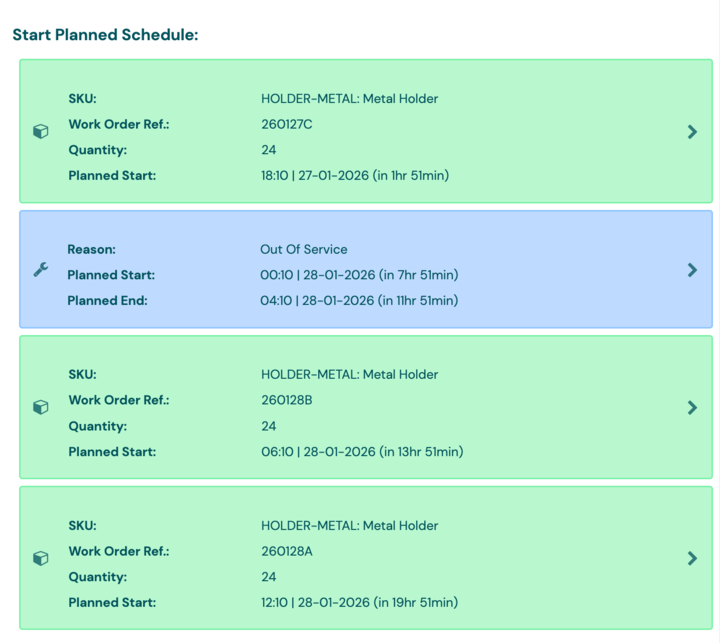
Non-production schedules are shown in blue in the station's schedule list. The operator can select one to start it early. Otherwise it starts and ends at its planned times.
A non-production schedule starts and ends at its planned times even if a production schedule is running. For that time, the station is in planned non-production.
What happens to production recorded before a schedule was added?
Production signals are only recorded while a production schedule is running. If you add a schedule afterwards that covers the time, Busroot reprocesses the station's data from the schedule's start and records the production against that schedule. You can only add a schedule with a planned start in the past through the API, up to 30 days back.