Operator Screens and Displays
Busroot runs in any modern web browser, so any device with one can be an operator screen or a shop floor display: a touchscreen, a tablet, a PC or a TV. There is no app to install.
What each screen runs
| Where | Device | What it shows |
|---|---|---|
| At a station, in reach of the operator | A touchscreen with a small computer behind it, a tablet, or a PC | The Operator Interface, where operators start schedules, count production, give downtime reasons and complete Tasks |
| On a wall or above a line | A TV with a Fire TV Stick or a small PC | Production Progress or the Cockpit |
| In the office | Any PC or laptop | The whole Busroot web app |
Output Industries can supply operator screens: a touchscreen with a small pre-configured computer on the back. It shows its station as soon as it is powered up and on the network. For mounting and power, see the Installation guide.
Requirements
- A modern web browser. Busroot works in all major browsers, such as Chrome, Edge, Firefox and Safari, on Windows, macOS, Linux, Android and iOS.
- Network access to your Busroot address over HTTPS (port 443). Your Busroot address is given when your account is set up. For security, you can restrict screens so that they can only reach this address. See Shop floor network.
Logging in with an access code
Shared screens log in with an access code, not a personal login. A personal login link expires after 30 days, and this can't be changed for security reasons. An access code login does not expire, so the screen stays logged in.
One access code serves all your screens and displays. An Admin creates it on Access codes.
| Screen | Login address | Opens |
|---|---|---|
| Operator screen | https://<your Busroot address>/auth/login/tablet |
The Operator Interface |
| TV display | https://<your Busroot address>/auth/login/accesscode |
The Busroot home page, where you choose the page to show |
Set up an operator screen
- On Access codes, click Add New to create an access code, if you don't have one yet.
- On the screen, open
https://<your Busroot address>/auth/login/tablet. - Enter the access code.
- Choose the station the screen belongs to. See Operator Interface.
If operators will count production by hand on the screen, turn on Allow Manual Production for the station. See Station.
Set up a TV display
Production Progress shows production schedules, so set up Production Tracking and schedules first.
- On Access codes, click Add New to create an access code, if you don't have one yet.
- On the TV, open
https://<your Busroot address>/auth/login/accesscode. For a Fire TV Stick, follow Fire TV Stick. - Enter the access code.
- Open the page you want to show, for example Production Progress.
You can choose how Production Progress orders stations, whether it shows live speed, and whether it hides stations with no running schedule. See Account and Production Progress.
Screens supplied by Output Industries
Supplied screens run a locked-down kiosk browser that opens Busroot and blocks other apps. You may need to change a kiosk setting, for example to join a new Wi-Fi network. If the screen asks for a PIN, contact support.
FAQs
Our TVs keep asking us to log in. How do we stop this?
Log in with an access code, not a personal login. A personal login link is valid for only 30 days. The access code login has no expiry date. See Set up a TV display.
Our Wi-Fi has changed and our screens are offline. We need the kiosk PIN to change the settings.
Contact support. They will help you connect the screens to the new network.
Can we use our own tablets or PCs?
Yes. Busroot runs in any modern web browser, so the device only needs a browser and access to your Busroot address. See Requirements. Contact support if you want help choosing or setting up devices.
How can we make the text bigger on the operator screens?
On your own devices, use the browser's zoom. On supplied screens, change the font size in the kiosk browser settings: swipe in from the left of the screen, select Settings, then Web Zoom and Scaling, then Set Font Size. About 150% works well. Swipe in from the left again to return to Busroot. In landscape orientation, larger text leaves less room, so operators may need to scroll to reach the submit button. Try a few sizes to find what suits your operators. If the screen asks for a PIN, contact support.
A screen shows an error we can't get past. What should we do?
Send a screenshot of the error to support, and tell them:
- when you first noticed the problem
- whether it affects only one screen or station
- whether the Wi-Fi signal in that area is strong
How do we let a supplied screen go to sleep?
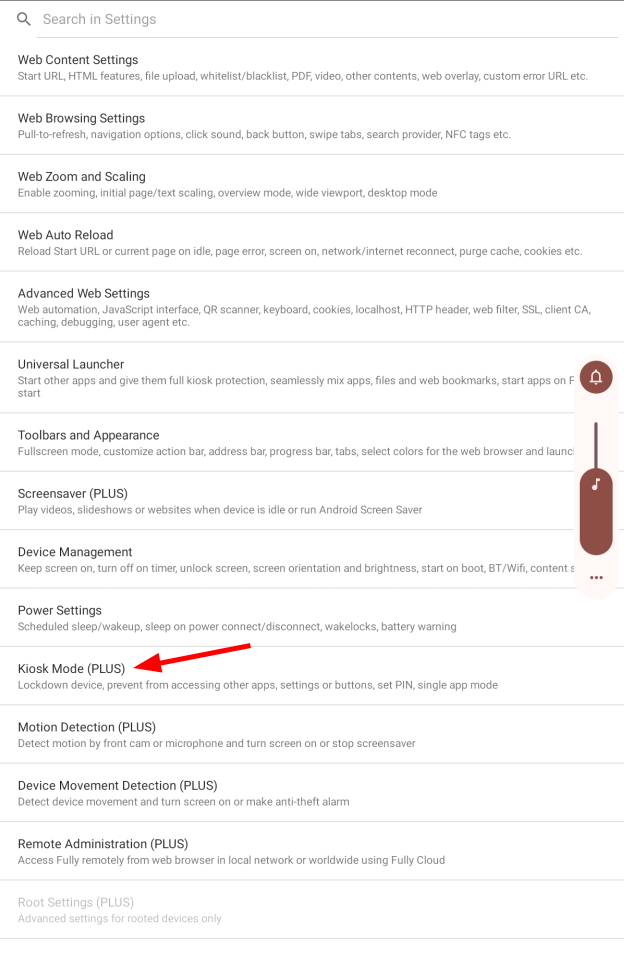
By default the screen stays on. To let it sleep, go to Settings > Kiosk Mode (PLUS) > Disable Power Button and turn it off. If the screen asks for a PIN, contact support.
Busroot has been updated. How do we update our screens?
Restart the screen. On a supplied screen, you can also swipe in from the left to open the kiosk menu and select Go to start URL, which reloads Busroot.
How do we make a supplied screen open straight on the Busroot login page?
Go to Settings > Kiosk Mode (PLUS) and turn on Enable Kiosk Mode. The screen then opens Busroot directly instead of the home screen shortcut. Leaving kiosk mode needs a PIN: contact support for it.