Production Progress
Production Progress is a large-screen board that shows each running production schedule's quantity against its target and its estimated time to finish. It is designed for a TV on the shop floor, so everyone can see whether each job is on track.
Open it from Live Monitoring > Production Progress. The page refreshes every 30 seconds. It only displays information: to start, end or change schedules, use the Operator Interface or Gantt & Schedules.
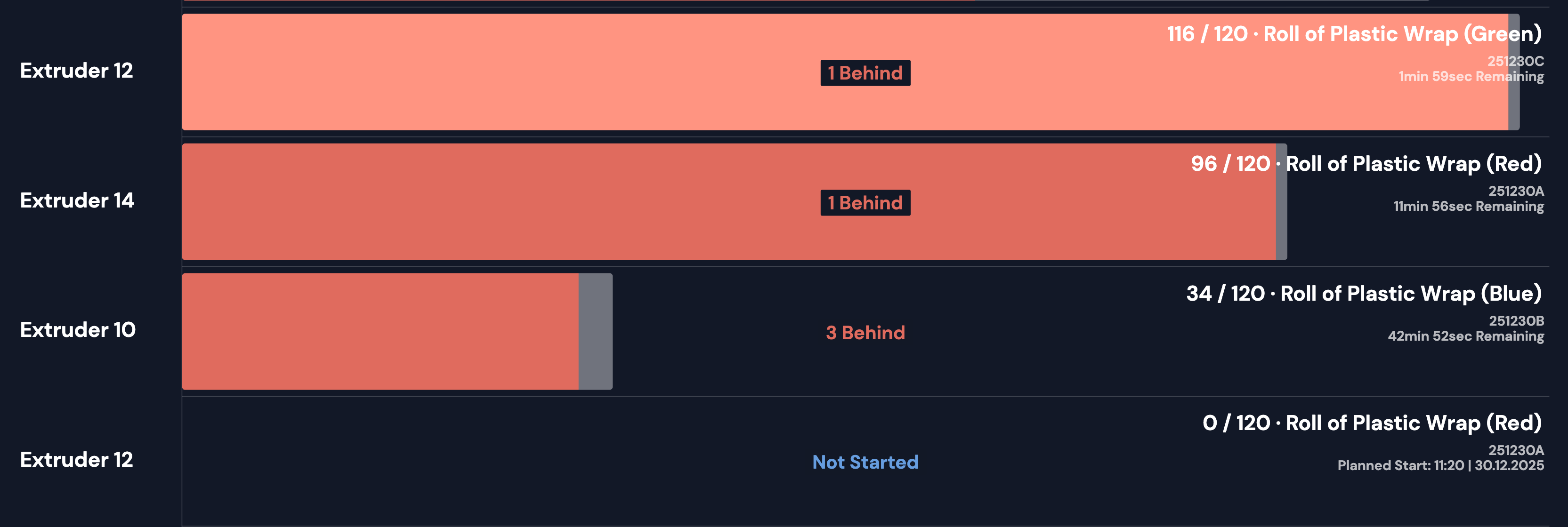
Reading the board
Each schedule is one row. The row shows the station name and code, a progress bar and, at the right:
- the good quantity against the planned quantity, and the SKU.
(limit)after the quantity means the schedule has reached the account's maximum production count per schedule and has stopped recording; - the Work Order Ref.;
- the time remaining. A schedule that has not started shows its planned start instead.
The bar fills with the schedule's schedule progress. When the schedule is behind, a second segment extends the bar to where it should be by now, at the SKU's performance target. The label on the bar gives the status:
| Label | Meaning |
|---|---|
| On Track | The schedule has produced at least as many units as it should have by now. |
| n Behind | The schedule is n units behind where it should be. The label is shown in red. |
| Complete | The planned quantity has been reached, but the schedule is still running. |
| Ended | The schedule has ended. |
| Not Started | The schedule is due to start soon. |
The time remaining is the remaining units multiplied by the cycle time per unit.
Which schedules are shown
- Only production schedules with a planned quantity. Continuous and Fixed End schedules, which have no planned quantity, are not shown.
- Running schedules, then schedules that ended in the last 10 minutes, then schedules that have not started yet but are due to start within the next hour.
- At most 50 schedules.
Display options
Three account settings change the board. Set them on the Account page:
- Station Order: list schedules by Schedule Start (running schedules first, by start time) or Alphabetical by station name.
- Show Live Speed: add the station's current speed to the bar label, for stations whose performance target is in units per minute or units per hour.
- Hide Stations Without Running Schedules: show only running schedules, and hide ended and upcoming ones.
Showing one area
By default the board shows every station in the plant selected at the top of the page. To show only part of the plant on a screen, add a filter to the page address:
?stationgroupcodes=GROUP_Ashows one station group. Separate several codes with commas.?stationcodes=STATION_1,STATION_2shows the stations you list.
Set up a display
Before you start, set up Production Tracking and schedule production for the stations: the board only shows schedules with a planned quantity.
- Create an access code for the display. See Access codes.
- On the TV, open the access-code login page of your Busroot address and enter the code. An access code keeps the display signed in. See Operator screens and displays and, for the Fire TV Stick, Fire TV Stick.
- Open Live Monitoring > Production Progress, and choose the plant.
- Optional: set the display options on the Account page.
For the board to show progress and time remaining, each SKU needs a performance target. Units produced come from the machine or from manual counts in the Operator Interface.
Capabilities and metrics
| Capability | What Production Progress shows |
|---|---|
| Production Tracking | Schedule progress, good count, target count (where a schedule that is behind should be) |
| Scheduling | Running and upcoming production schedules |