Station
A station is a machine, line, cell or workplace that Busroot monitors. Everything Busroot records belongs to a station, and stations roll up into station groups and plants. Go to Admin > Station.
Each station needs at least a name, a station group and a shift pattern. The other settings depend on which capabilities you use. Each capability's Connect section says which settings it needs.
Info
Station settings are stored in the account manifest.
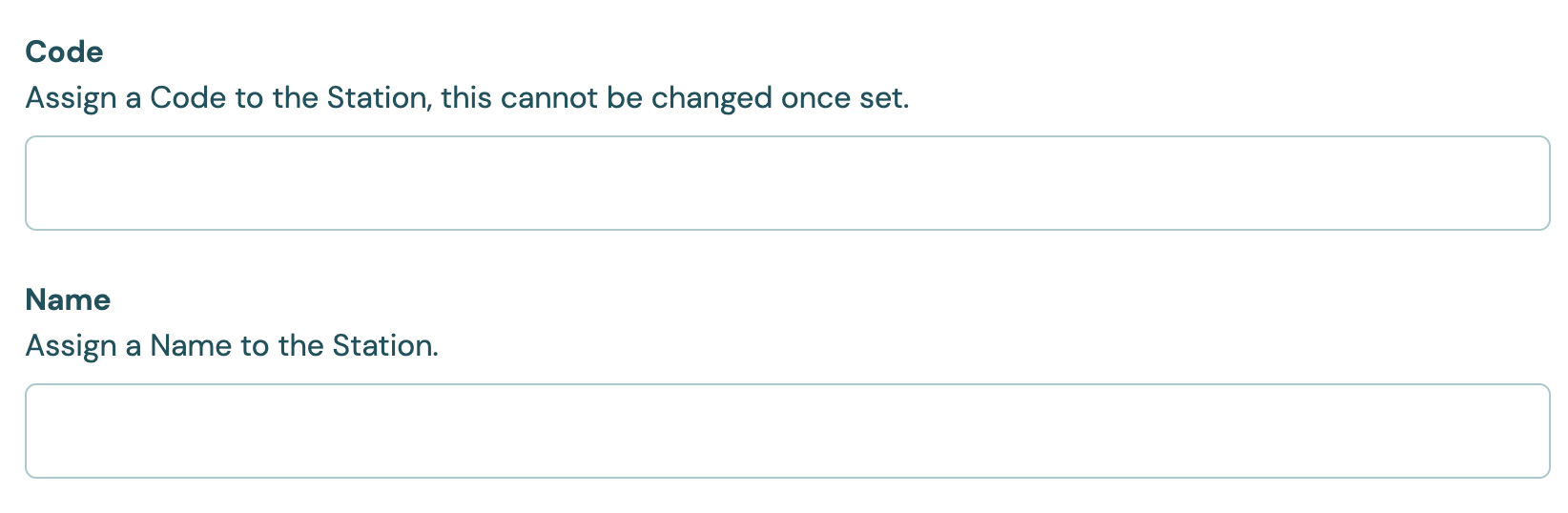
Code, Name and Description
| Setting | Values | Default | Effect |
|---|---|---|---|
| Code | 1 to 32 characters: letters, numbers, - and _. The form changes letters to upper case |
None (required) | The station's permanent identifier. Devices send data to this code. You can't change it after you save the station. |
| Name | 1 to 32 characters | None (required) | The name shown across Busroot. |
| Description | Text | Empty | A short note on what the station does. |
You can rename a station yourself at any time: edit it and change its Name. The code stays the same. See Codes are permanent.
Assignment
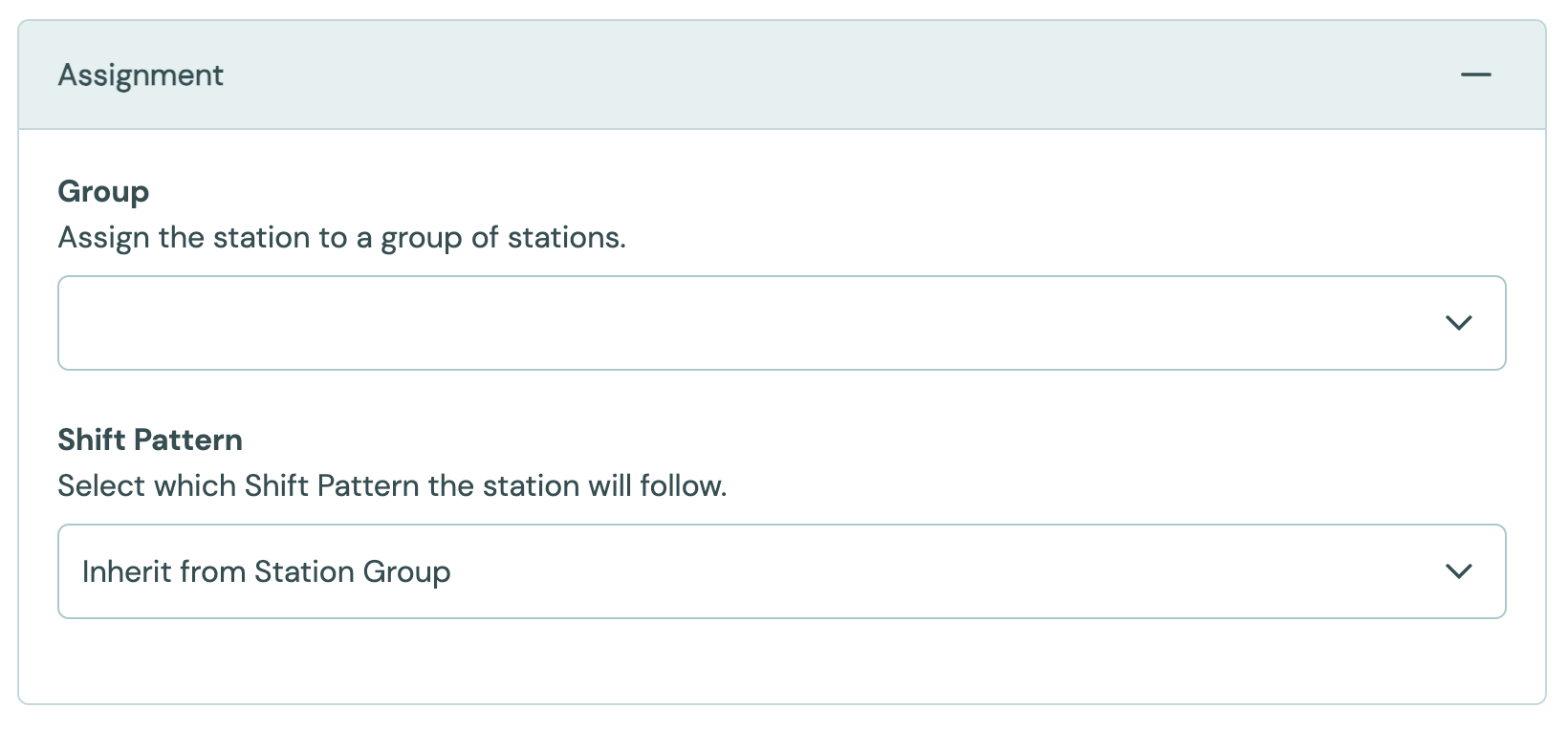
| Setting | Values | Default | Effect |
|---|---|---|---|
| Group | A station group | None (required) | The station group the station belongs to. A station can be in only one group. |
| Shift Pattern | A shift pattern, or Inherit from Station Group | Inherit from Station Group | When the station is meant to work. It sets the station's in-shift time. |
You can give a shift pattern to a whole station group or to individual stations. A station without its own pattern uses its group's pattern. See Shift Patterns.
Production
These settings set the station's performance target and filter its production signals. See Production Tracking and OEE.
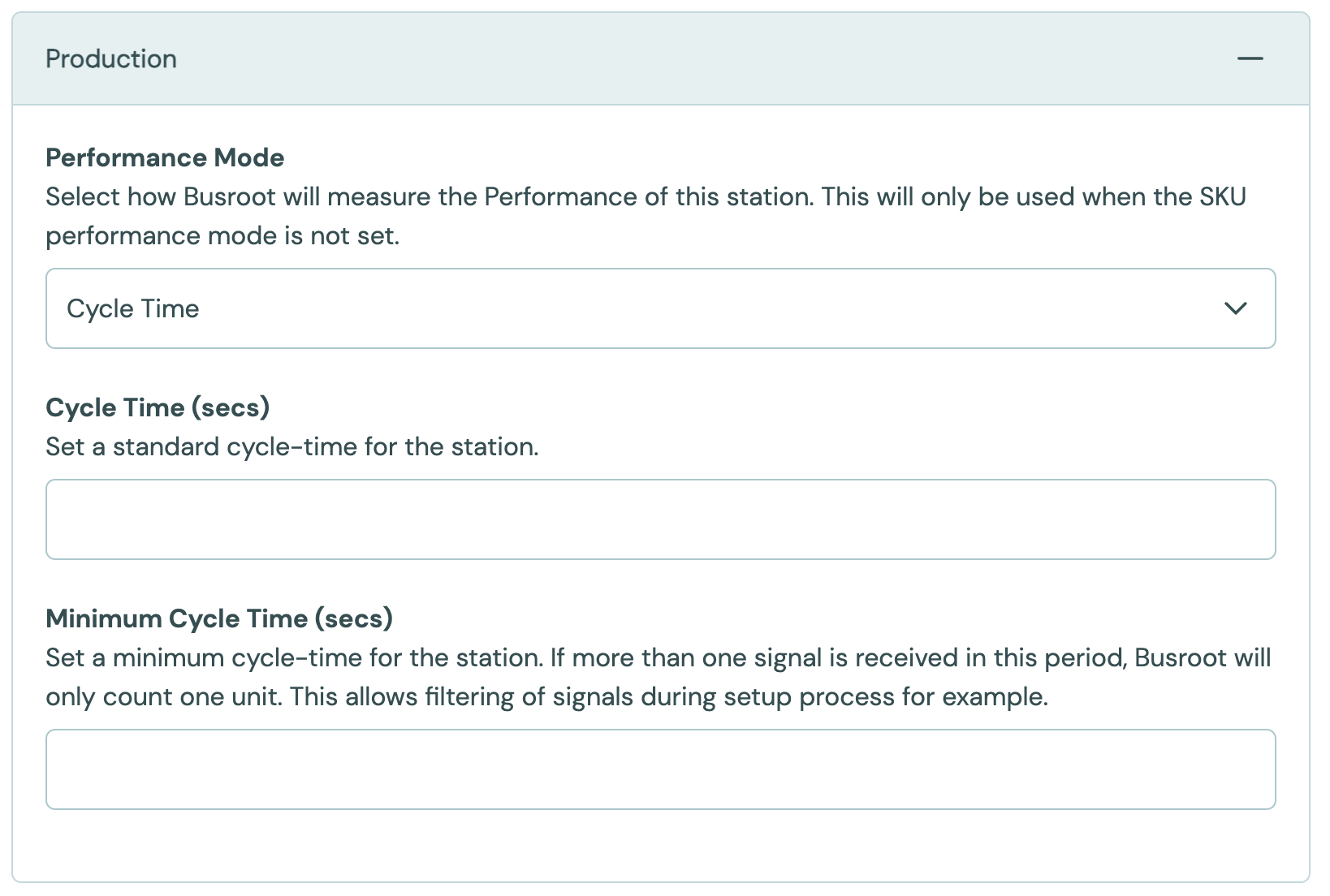
| Setting | Values | Default | Effect |
|---|---|---|---|
| Performance Mode | Cycle Time, Units per Minute, Units per Hour, Independent Process Speed | Cycle Time | How the station's performance target is given. Busroot uses the station's target only when the running SKU has none of its own. |
| Cycle Time (secs) | Whole number of seconds, up to 12 hours | Empty | With Cycle Time: the time each unit takes. Set it to the station's average cycle time. |
| Units per Minute | Whole number above 0 | Empty | With Units per Minute: the units the station should make each minute. |
| Units per Hour | Whole number above 0 | Empty | With Units per Hour: the units the station should make each hour. |
| Line Speed Target | Number above 0, up to 99,999 | Empty | With Independent Process Speed: the target speed for a continuous process, measured as a rate instead of as units. |
| Minimum Cycle Time (secs) | Whole number of seconds, 0 up to 12 hours | Empty | Production signals that arrive closer together than this count as one unit. Use it to filter out repeated pulses for one unit. A running SKU's own Minimum Cycle Time takes priority. |
Independent Process Speed is for a process that runs at a speed, such as metres per minute, instead of making separate units. The station's speed signal is compared with the Line Speed Target. See Production Tracking.
Productive Status
These settings decide when the station is productive. See Asset Utilisation.
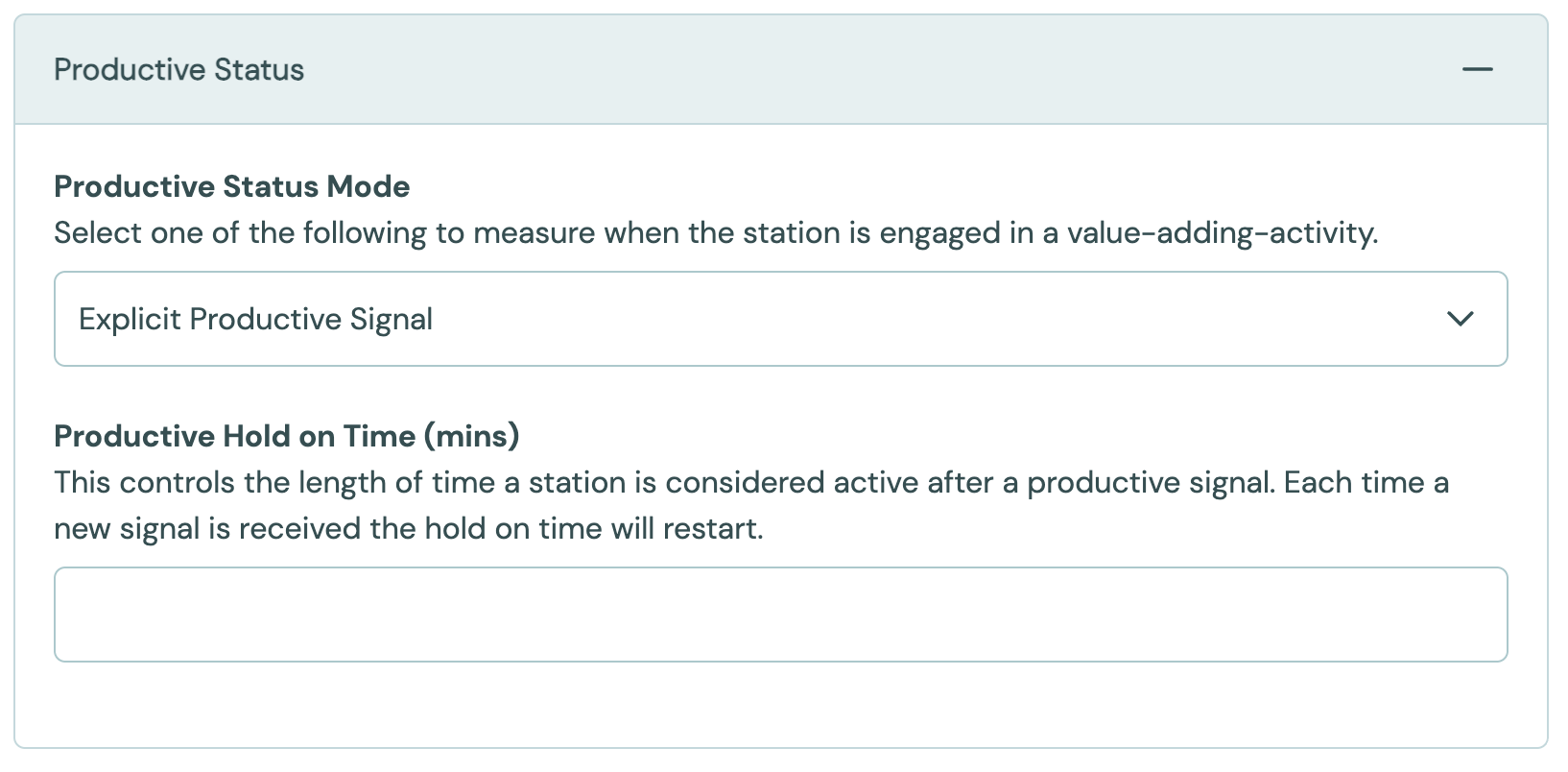
| Setting | Values | Default | Effect |
|---|---|---|---|
| Productive Status Mode | Explicit Productive Signal, Electrical Usage, Line Speed | Explicit Productive Signal | Which signal tells Busroot the station is doing value-adding work. |
| Stopped Threshold (kW) | Number, 0 or more | Empty | Shown with Electrical Usage, and required. Below this power draw the station counts as stopped. |
| Line Speed Stopped Threshold | Number, 0 or more | Empty | Shown with Line Speed, and required. Below this speed the station counts as stopped. It is a speed in the station's own speed units, not a time. |
| Productive Hold on Time (mins) | Minutes, up to 1 day | Empty (0) | How long the station stays productive after each productive signal. Each new signal restarts the time. Set it longer than the usual gap between signals. |
The three Productive Status Mode options:
- Explicit Productive Signal. A device sends a productive signal while the machine is working. See Station signals.
- Electrical Usage. The station is productive while its energy meter shows power above the Stopped Threshold (kW). Use this when the station has an energy meter but no productive signal.
- Line Speed. The station is productive while its speed signal is above the Line Speed Stopped Threshold.
Production counts alone never make a station productive. A station that only sends counts shows its output, but its utilisation stays at 0% until it also sends a productive signal or you choose another mode.
Downtime
These settings decide how stops are detected. See Downtime.
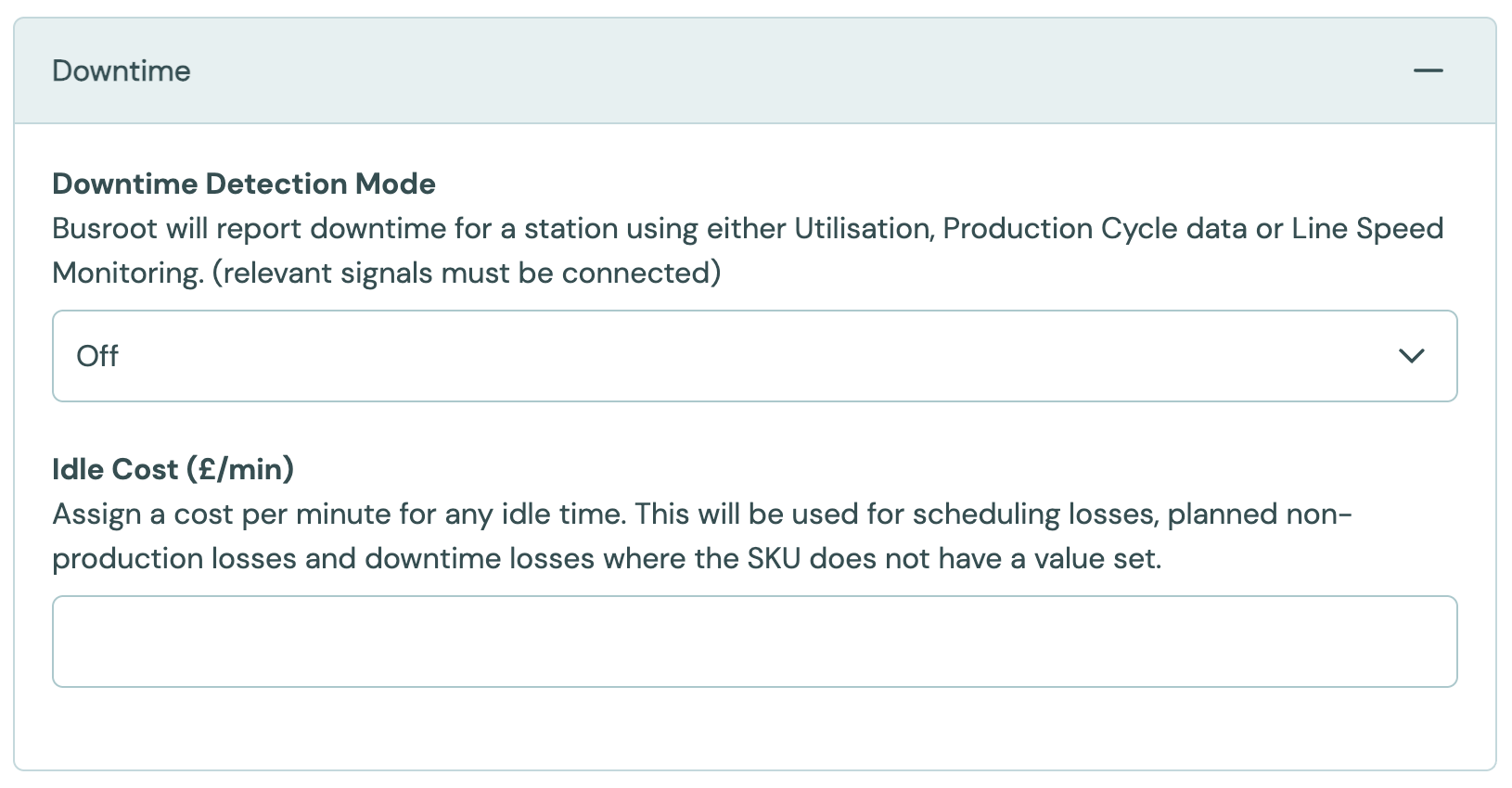
| Setting | Values | Default | Effect |
|---|---|---|---|
| Downtime Detection Mode | Off, Production Cycle Monitoring, Utilisation Monitoring, Line Speed Monitoring (Slow Detection) | Off for a new station in Admin | Which data Busroot uses to detect a stop. Off records no downtime. |
| Utilisation Downtime Threshold (mins) | Minutes, 0 or more | None. Required with Utilisation Monitoring | The shortest stop that Busroot records as downtime. Stop emails use it too. See Alerts. |
| Idle Cost per Station Minute | Number, 0 to 99,999, in the account currency | Empty | The cost of each idle minute. Used when the SKU has no value. See Downtime cost and Lost production cost. |
The Downtime Detection Mode options:
- Production Cycle Monitoring. A stop starts when no production arrives for longer than the SKU's cycle time multiplied by its Downtime Detection Cycle Time Multiplier.
- Utilisation Monitoring. A stop starts when the station stops being productive, and it is recorded once it lasts longer than the Utilisation Downtime Threshold.
- Line Speed Monitoring (Slow Detection). Busroot records slow running when the speed drops below a share of the Line Speed Target. See Downtime.
A station defined in the account manifest without a mode uses Utilisation Monitoring. See the Schema Reference.
Energy
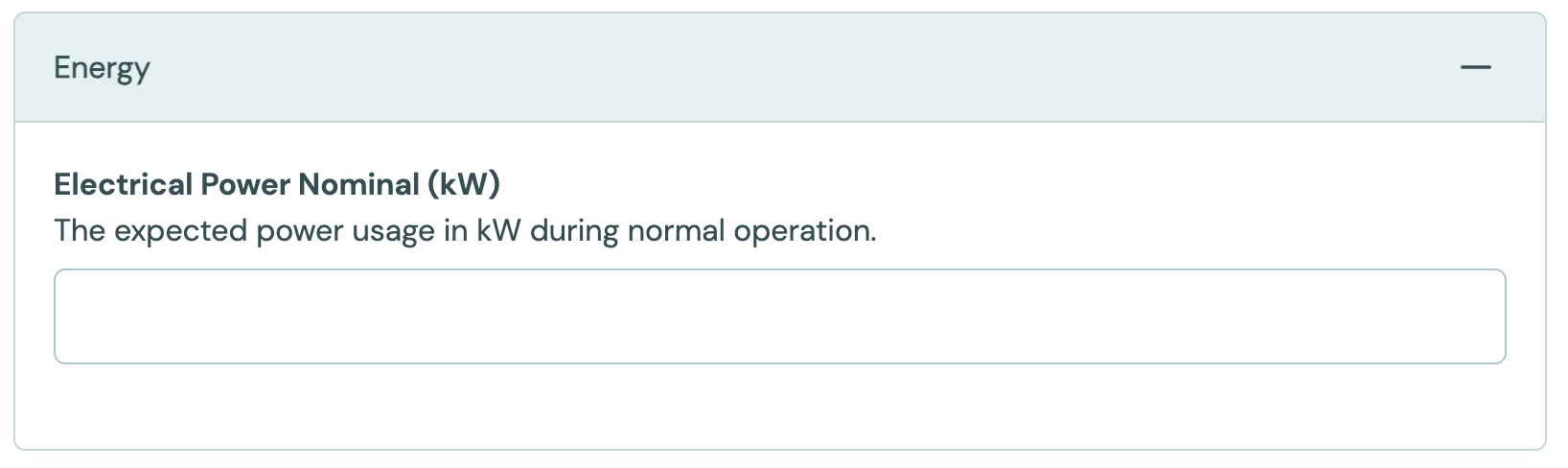
| Setting | Values | Default | Effect |
|---|---|---|---|
| Electrical Power Nominal (kW) | Number, 0 or more | Empty | The power the station is expected to draw in normal operation. See Power vs nominal. |
To make a station stand for an energy meter, such as a plant incomer, turn on the Meter Only feature flag. See Feature flags.
Speed
These settings calibrate a speed signal. See Production Tracking.
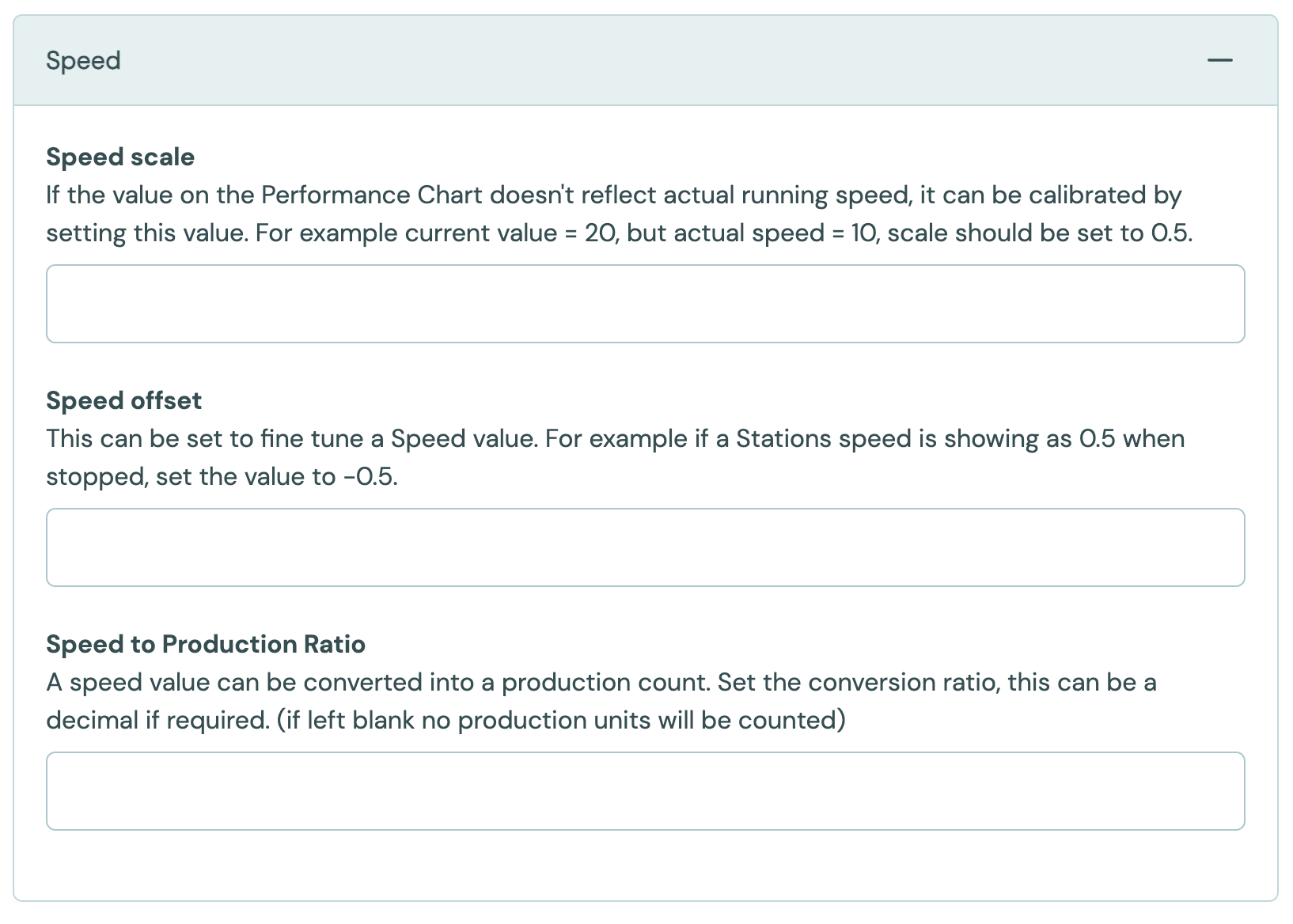
| Setting | Values | Default | Effect |
|---|---|---|---|
| Speed Scale | Number, −9,999 to 9,999 | Empty | Multiplies the speed signal. If the signal reads 20 when the real speed is 10, set 0.5. |
| Speed Offset | Number, −9,999 to 9,999 | Empty | Adds to the speed signal. If the speed reads 0.5 when the station is stopped, set −0.5. |
| Speed to Production Ratio | Number, 0 to 99,999, decimals allowed | Empty | Turns a speed into a production count. If it is empty, no units are counted from speed. |
Use the scale to show the speed in the unit you want. For example, if a signal of 0 to 1 means stopped to full speed, and full speed is 20 m/s, set the scale to 20. A signal of 0.25 then shows as 5 m/s. To show bottles per hour from a signal in bottles per minute, set the scale to 60.
Feature flags
Feature flags turn optional behaviour on or off. You set them on the Feature Flags panel of the Account, Plant, Station Group and Station forms.
Below the account, each flag is Inherit, On or Off:
- On or Off applies from this level down.
- Inherit takes the value from the nearest level above that sets one.
The nearest level that sets a value wins. A flag that no level sets is Off. For example, to turn a flag on everywhere except one station, set it On for the account and Off on that station.
| Flag | Levels | Effect |
|---|---|---|
| Allow Production Correction | Account, plant, group, station | Operators can correct production counts during a running schedule in the Operator Interface. |
| Allow Manual Production | Account, plant, group, station | Operators can enter production counts by hand in the Operator Interface. See Production Tracking. |
| Allow Ad Hoc Schedules | Account, plant, group, station | Operators can start an unplanned schedule from the Operator Interface. They only choose a SKU, and the schedule runs until they end it. See Scheduling. |
| Allow Cutting Schedules Short | Account, plant, group, station | A schedule can be ended before its planned end. The remaining quantity goes to a new schedule with the same work order reference. See Gantt & Schedules. |
| Allow Rejecting Production | Account, plant, group, station | Operators can record units as bad. See Quality. |
| Allow Editing Parts Per Cycle | Account, plant, group, station | Operators can change the parts per cycle of a schedule. |
| Allow Schedule Station Flexibility | Account, plant, group, station | Schedules can run on any station in the group. |
| Allow Manual Downtime | Account, plant, group, station | Operators and API users can start a downtime on the station by hand. Production is blocked while it is active. See Downtime. |
| Always Connected | Account, plant, group, station | The station always shows as connected, whatever its device sends. Use it for stations with no device, such as stations that count production by hand. |
| Scheduling Only | Group, station | The station is used for scheduling only, with no live production. |
| Meter Only | Group, station | The station stands for an energy meter. It only needs electrical signals, and it needs no shift pattern or schedules. It is hidden from production views, rollups and station lists, but you can still choose it in the Trend Viewer, and it appears in energy CSV exports. See Energy Efficiency. |
The account has more flags of its own. See Account.
A station can't be both Meter Only and Scheduling Only.
Visibility
Earlier versions of the Station form had a Visibility panel. It has been removed. To keep an energy meter out of production views, use Meter Only.
Task Lists and Reasons
The Task Lists and Reasons panels choose which Task lists and reasons this station offers. See Tasks and Reasons.