Asset Utilisation
Asset Utilisation shows how much of the time each station is productive, and when it is idle. It answers "are my machines working when they could be?" Busroot needs a signal that tells it when the station is productive: a productive signal from the machine, the electrical load above a threshold, or the line speed above a threshold.
How it works
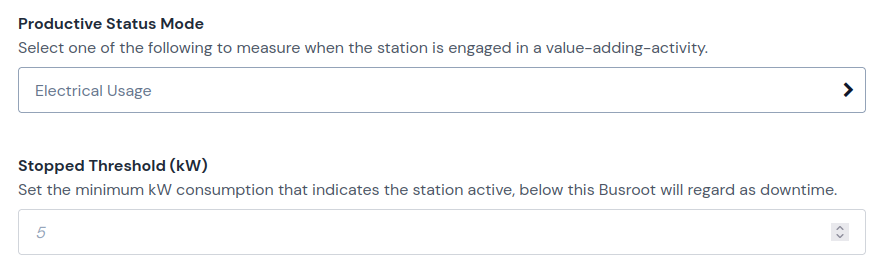
Busroot decides whether a station is productive in each one-minute window. You choose how it decides with the station's Productive Status Mode in Admin > Station.
| Productive Status Mode | Signal | The station is productive when |
|---|---|---|
| Explicit Productive Signal (default) | productive |
The device sends a productive signal. Each signal keeps the station productive for the Productive Hold On Time. |
| Electrical Usage | Electrical energy from an energy meter | The power drawn is above the Electrical Usage Stopped Threshold (kW). |
| Line Speed | line_speed |
The speed is at or above the Line Speed Stopped Threshold. |
The signals are described in Station signals. The hardware that sends them is on Machine connectors and Energy meters.
Busroot counts productive time only inside a shift. Time in a non-production schedule, such as planned maintenance and breaks, is taken out of the time the station could be productive, so it does not lower utilisation.
Note
Production counts alone never make a station productive. A device that sends only counts shows output and 0% utilisation until it also sends a productive signal, or you change the Productive Status Mode.
The Cockpit shows each station's live state: running, stopped, out of shift or in planned non-production. When a station stops for longer than its threshold during a production schedule, Busroot records downtime and can send an alert. To detect stops as well, see Downtime.
Set it up
- Give the station a shift pattern, or put it in a station group that has one. See Shift patterns and Station.
- Connect the signal. Use a machine connector for a productive signal or line speed, or an energy meter for electrical load.
- In Admin > Station, set the Productive Status Mode:
- Explicit Productive Signal: set the Productive Hold On Time (mins). It must be longer than the usual gap between two productive signals. If the machine signals once per cycle, set it a little above the cycle time.
- Electrical Usage: set the Electrical Usage Stopped Threshold (kW). Choose a value above the power the machine draws when it is switched on but idle.
- Line Speed: set the Line Speed Stopped Threshold. Contact support to help calibrate the speed signal.
- Optional: add non-production schedules for planned maintenance and breaks, so that this time does not lower utilisation.
Where you see it
- Cockpit: each station's live state.
- Pulse Chart: the Asset Utilisation (Red/Green) metric shows Productive state for each window. The Asset Utilisation (Colour Range) metric colours each window by its Utilisation.
- Trend Viewer: the Asset Utilisation metric plots Productive time in minutes, against scheduled production time as the target.
- Hierarchy Explorer: the Utilisation columns show total considered time, productive time and utilisation, rolled up from station to plant.
Metrics
Productive time
minutes
The time the station was productive.
- Notes Busroot records productive time by the minute, and only inside a shift. The target is scheduled production time. The Trend Viewer shows this metric under the name "Asset Utilisation".
Utilisation
%
Productive time as a share of the time the station was available.
Utilisation = productive time ÷ (in-shift time − scheduled non-production time)
- Notes The time below the line is shown as "Total Considered Time" in the Hierarchy Explorer. It includes in-shift time with no schedule at all. If you do not want that time to count against the station, cover it with a non-production schedule. The Pulse Chart shows utilisation for each window as "Utilised: n%".
Productive state
on / off
Whether the station was productive in each time window.
- Notes A window is productive if the station was productive at any point in it, including the hold-on time after a productive signal. On the Pulse Chart a window can also be Out of Shift, Planned Non-Production, Connection Lost (no signal received) or Future Time.
In-shift time
minutes
The time the station spent inside a shift.
- Notes Set by the station's shift pattern. The Hierarchy Explorer also shows Total Time, which is all the time in the selected range, in shift or not.
FAQs
What does hold on time mean?
The Productive Hold On Time is how long Busroot treats the station as productive after each productive signal. Each new signal restarts it. It gives a fair picture for machines that send one short signal per cycle, or for manual processes. For example, a welder's trigger can send the productive signal, and a hold on time of 5 minutes means the station counts as welding for 5 minutes after each trigger press. You set it on the station in Admin > Station.
Why is a station showing "Out of Shift"?
The time is outside the station's shift pattern. Busroot records no productive time or utilisation outside a shift. Check the shift pattern on the station, or on its station group, in Shift patterns, and edit it to match your working hours.
Why is utilisation zero when the production count is not?
Check the shift pattern first. A station that has no shift pattern, on the station or on its group, is never in shift. It shows production counts but its utilisation is always zero. While you commission a new station, a 24/7 shift pattern lets you test at any hour. You can set a realistic pattern later.
If the station has a shift pattern, check that it sends a productive signal, or that its Productive Status Mode matches the signal it sends. Production counts alone never make a station productive.